Sign in With Provider
signInWithProvider in a template that can be used to allow users to sign in with Google or Apple Providers.
| Key | Notes |
|---|---|
type | signInWithProvider |
stepId | Unique step id |
title | The title of the template |
subtitle | The subtitle |
imageUrl | The background image used for the step |
maxWidth | Can be used to determine the max with of the image: e.g: 240px |
lottieUrl | It can be used to show a Lottie file instead of an image. Note: one step can have either imageUrl or lottieUrl, not both. |
providers | All the data needed for the providers: Example: "providers": [ { "type": "apple", "icon": "https://c.thefab.co/web-onboarding/fabulous/icon/apple-icon.svg", "text": "Sign In with Apple", "textColor": "#000000", "borderColor": "#FFF", "backgroundColor": "#FFF" }, { "type": "google", "icon": "https://c.thefab.co/web-onboarding/fabulous/icon/google-icon.svg", "text": "Sign In with Google", "textColor": "#000000", "borderColor": "#FFF", "backgroundColor": "#FFF" } ] Note: Currently, only apple and google are supported. |
titleColor | The color of the title |
subtitleColor | The color of the subtitle |
backgroundColor | The page’s background color. |
redirectTo | The link to which the user will be redirect after logging in. Note: The link follows the same rules used for [Webview](Onboarding Templates/Webview) regarding the subdomains used for it. |
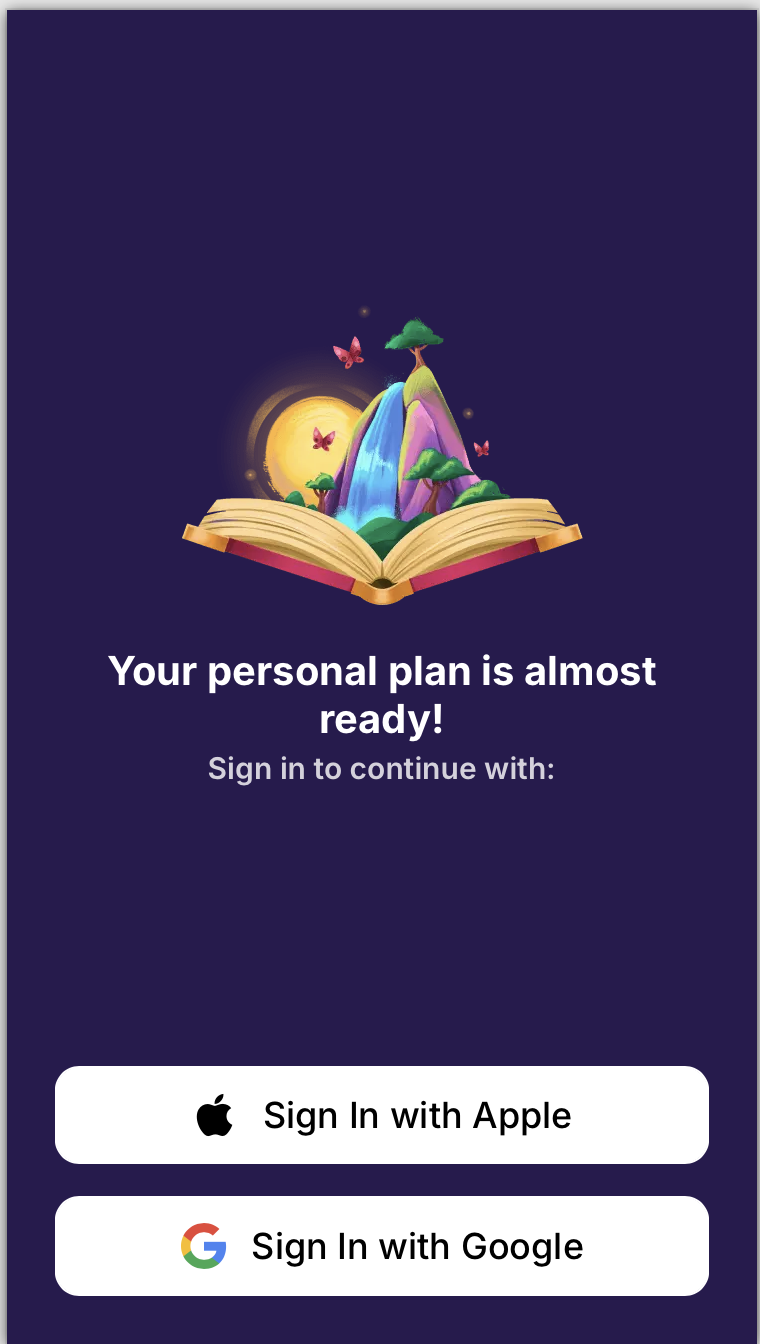
An example of a signInWithProvider step
{
    "type": "signInWithProvider",
    "stepId": "step-1",
    "title": "Your personal plan is almost ready!",
    "subtitle": "Sign in to continue with:",
    "imageUrl": "https://c.thefab.co/web-onboarding/fabulous/nature-book.png",
    "useHTML": false,
    "backgroundColor": "#281A4F",
    "titleColor": "#FFF",
    "subtitleColor": "rgba(255, 255, 255, 0.8)",
    "maxWidth": "240px",
    "redirectTo": "https://start.thefabulous.co/payment/pwyw/pwyw---new-pop-up-fab1",
    "providers": [
        {
            "type": "apple",
            "icon": "https://c.thefab.co/web-onboarding/fabulous/icon/apple-icon.svg",
            "text": "Sign In with Apple",
            "textColor": "#000000",
            "borderColor": "#FFF",
            "backgroundColor": "#FFF"
        },
        {
            "type": "google",
            "icon": "https://c.thefab.co/web-onboarding/fabulous/icon/google-icon.svg",
            "text": "Sign In with Google",
            "textColor": "#000000",
            "borderColor": "#FFF",
            "backgroundColor": "#FFF"
        }
    ]
}
 |
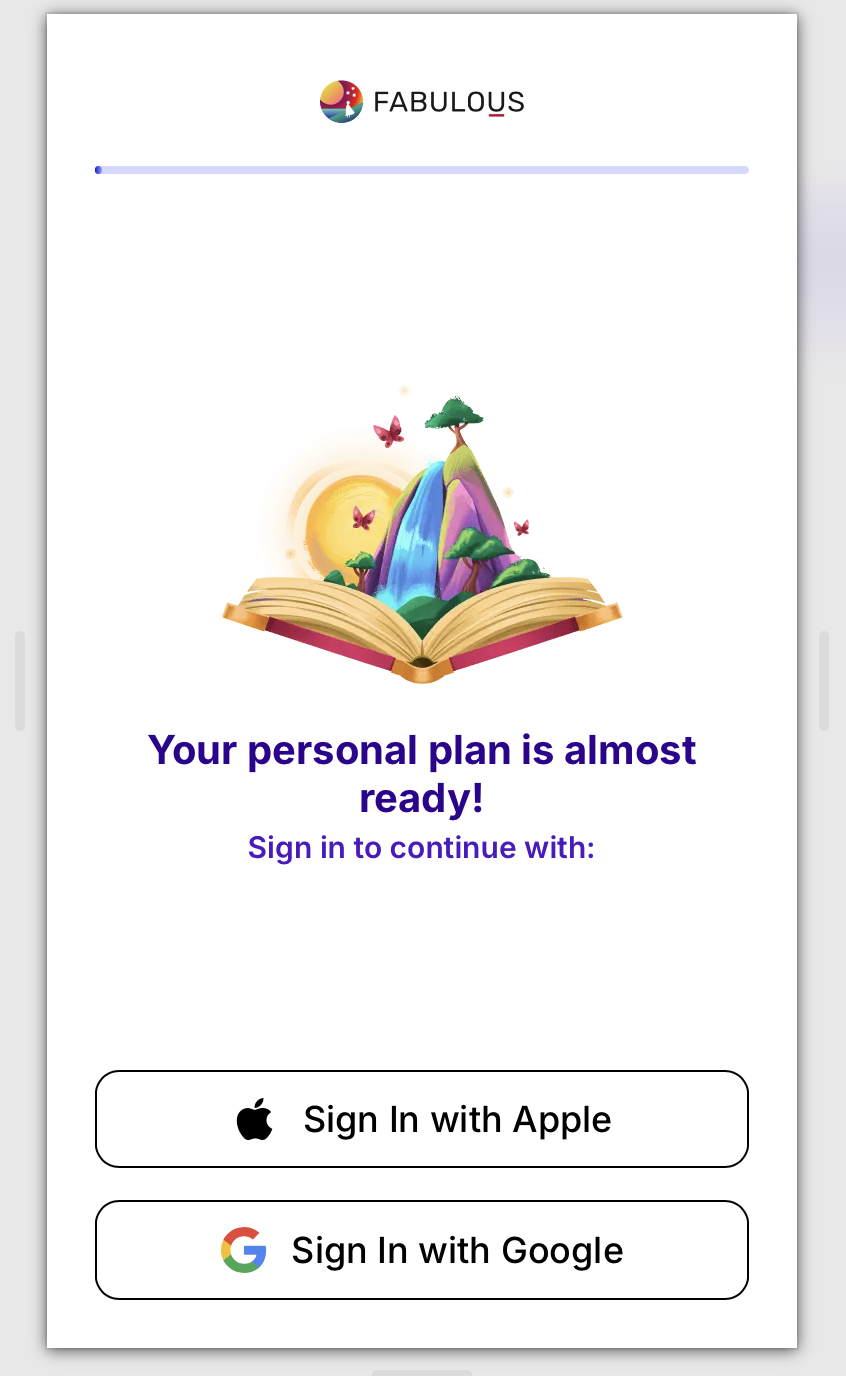
To add a progress bar to the onboarding that uses that step, you can add logoWithProgressBar to the top level of the onboarding with the styles needed for that onboarding.
An example of a signInWithProvider in an onboarding with a progress bar
{
    "id": "fabulous_app_id",
    "language": "en",
    "appId": "co.thefabulous.app",
    "seo": {
        "title": "Fabulous",
        "favicon": "https://www.thefabulous.co/images/favicon.png",
        "description": "Fabulous is the #1 self-care app to help you build better habits and achieve your goals. Join millions transforming their lives by building a new routine today"
    },
    "logoWithProgressBar": {
        "type": "gradient",
        "logoImage": "https://c.thefab.co/web-onboarding/fabulous/fab-logo-black.svg",
        "logoWidth": "126px",
        "logoWidthMobile": "102px",
        "logoHeight": "40px",
        "logoHeightMobile": "32px",
        "progressBarBackground": "#D6D7FF",
        "progressBarColor": "linear-gradient(270deg, #A9A3FF -5%, #0022D5 100%)"
    },
    "steps": [
        {
            "type": "signInWithProvider",
            "stepId": "sign-in-with-provider",
            "title": "Your personal plan is almost ready!",
            "subtitle": "Sign in to continue with:",
            "imageUrl": "https://c.thefab.co/web-onboarding/fabulous/nature-book.png",
            "useHTML": false,
            "backgroundColor": "#FFF",
            "titleColor": "#2F0191",
            "subtitleColor": "#4E17C3",
            "maxWidth": "240px",
            "redirectTo": "https://start.thefabulous.co/payment/pwyw/pwyw---new-pop-up-fab1",
            "providers": [
                {
                    "type": "apple",
                    "icon": "https://c.thefab.co/web-onboarding/fabulous/icon/apple-icon.svg",
                    "text": "Sign In with Apple",
                    "textColor": "#000000",
                    "borderColor": "#000000",
                    "backgroundColor": "#FFF"
                },
                {
                    "type": "google",
                    "icon": "https://c.thefab.co/web-onboarding/fabulous/icon/google-icon.svg",
                    "text": "Sign In with Google",
                    "textColor": "#000000",
                    "borderColor": "#000000",
                    "backgroundColor": "#FFF"
                }
            ]
        }
    ],
    "logic": []
}